
Your website’s loading speed affects every aspect of your online success. Search engines rank faster sites higher. Visitors convert better on fast sites. User experience improves dramatically when pages load quickly. Yet many WordPress websites load slowly, frustrating users and costing businesses traffic, conversions, and revenue.
WordPress powers over 40% of all websites partly because it’s flexible, feature-rich, and relatively easy to use. However, this flexibility comes with performance challenges. Multiple themes, dozens of plugins, unoptimized images, inefficient code, and poor hosting choices all contribute to slow WordPress sites that drive visitors away.
The good news is that WordPress performance is almost entirely within your control. Unlike social media algorithms or search engine ranking factors you can’t directly influence, website speed depends primarily on decisions you make about hosting, optimization, and maintenance. Understanding performance principles and implementing proven optimization strategies transforms slow WordPress sites into fast, efficient ones.
After optimizing hundreds of WordPress websites over the past decade taking load times from 8-10 seconds down to under 2 seconds we’ve developed clear frameworks for what works, what doesn’t, and how to prioritize optimization efforts for maximum impact. This comprehensive guide shares those insights.
Why WordPress Speed Matters
Before diving into optimization techniques, understanding why speed matters motivates the effort required for improvement.
User experience suffers dramatically on slow sites. Studies consistently show that 53% of mobile users abandon sites taking longer than three seconds to load. Every additional second of load time increases abandonment rates further. Users have limited patience, and slow sites test that patience beyond breaking points.
Even users who don’t immediately abandon slow sites have worse experiences. Slow page loads create frustration that colors perception of your entire brand. Fast sites feel professional and trustworthy, while slow sites feel amateurish and unreliable.
Conversion rates decline as load times increase. Amazon famously found that every 100 milliseconds of delay costs them 1% in sales. Google discovered that a 400-millisecond delay reduced searches by 0.59%. These tiny delays accumulated across millions of users represent enormous revenue impacts.
For e-commerce sites, conversion rate differences between 1-second and 5-second load times often exceed 50%. A store converting 3% of visitors with 1-second loads might convert only 1.5% with 5-second loads literally cutting revenue in half through poor performance alone.
Search engine rankings increasingly weigh page speed. Google explicitly uses page speed as a ranking factor, particularly for mobile searches. Faster sites rank higher than slower competitors, all else being equal. In competitive niches, speed differences can determine which businesses appear on page one versus page two a difference that massively affects traffic.
Mobile performance matters even more than desktop because mobile connections are often slower and mobile users are often on-the-go with less patience for delays. Over 60% of web traffic now comes from mobile devices, making mobile performance optimization critical rather than optional.
Server resource costs increase with inefficient sites. Slow sites typically consume more server resources processing requests, serving unoptimized files, and handling inefficient database queries. Better performance often reduces hosting costs or lets you handle more traffic on the same infrastructure.
Understanding these impacts helps justify the time and investment required for proper WordPress optimization. Speed isn’t just technical detail it’s business imperative affecting revenue, rankings, and user satisfaction.
Measuring WordPress Performance
You can’t improve what you don’t measure. Establishing baseline performance and tracking changes helps evaluate optimization effectiveness.
Google PageSpeed Insights analyzes both mobile and desktop performance, providing scores from 0-100 along with specific recommendations. PageSpeed Insights measures both lab data (synthetic tests in controlled conditions) and field data (real user experiences from Chrome User Experience Report).
PageSpeed Insights identifies specific issues: unoptimized images, render-blocking resources, unused CSS and JavaScript, and many other performance problems. Recommendations include estimated time savings, helping prioritize high-impact optimizations.
However, don’t obsess over perfect 100 scores. A score of 90+ generally indicates good performance. Chasing the final points to reach 100 often requires diminishing returns enormous effort for minimal real-world improvement.
GTmetrix provides detailed performance analysis including waterfall charts showing how pages load resource-by-resource. These waterfall diagrams reveal which elements load slowly, what blocks page rendering, and where bottlenecks exist.
GTmetrix also tests from different geographic locations, helping understand performance for users far from your server. International sites particularly benefit from location-specific testing.
WebPageTest offers advanced testing options including multi-location testing, connection speed throttling, and repeat view testing that shows how caching affects performance for returning visitors.
Chrome DevTools built into Chrome browser provides real-time performance analysis. The Network tab shows detailed loading information for every resource. The Performance tab records page loading and identifies JavaScript bottlenecks, layout issues, and rendering problems.
Real User Monitoring (RUM) tracks actual user experiences rather than synthetic tests. Services like Google Analytics, New Relic, or dedicated RUM tools show how real users experience your site across different devices, locations, and connection speeds.
Core Web Vitals are specific metrics Google uses for ranking that focus on user experience: Largest Contentful Paint (loading performance), First Input Delay (interactivity), and Cumulative Layout Shift (visual stability). These metrics provide standardized ways to measure user experience quality.
Test from multiple locations, devices, and connection speeds to understand performance comprehensively. A site that loads quickly on fast connections from your office might struggle on 3G mobile connections in other countries.
Establish baseline measurements before optimizing so you can measure improvement objectively. Record initial load times, PageSpeed scores, and Core Web Vitals, then track how optimization efforts move these metrics.
Image Optimization: Low-Hanging Fruit
Images typically account for 50-90% of page weight on WordPress sites, making image optimization the highest-impact performance improvement for most websites.
Image compression reduces file sizes without visible quality loss. Tools like TinyPNG, ShortPixel, or Imagify compress images substantially often reducing file sizes by 50-80% while maintaining visual quality.
WordPress plugins automate image compression. ShortPixel, Smush, and Imagify integrate directly into WordPress, automatically compressing images as you upload them and providing bulk optimization for existing image libraries.
Lossy compression provides better file size reduction than lossless compression, with quality differences often imperceptible at appropriate settings. For web use, lossy compression at 80-85% quality typically provides excellent balance between file size and visual quality.
Appropriate image dimensions prevent serving oversized images. If images display at 800 pixels wide on pages, don’t upload 3000-pixel originals. WordPress generates multiple sizes from uploaded images, but starting with appropriately sized images ensures efficient generation.
Responsive images using srcset attributes serve different image sizes to different devices. Large images load on desktop while smaller versions load on mobile, reducing mobile data usage and improving mobile performance.
Modern image formats like WebP provide better compression than JPEG and PNG. WebP images are typically 25-35% smaller than equivalent JPEG images with similar quality. WordPress 5.8+ supports WebP natively, and conversion plugins can automatically serve WebP to supporting browsers while falling back to JPEG/PNG for older browsers.
AVIF is even newer and more efficient than WebP, though browser support is still limited. As support improves, AVIF will become the preferred format for even better compression.
Lazy loading delays loading images until they’re about to appear in viewport. Users scrolling down pages only load images they’re actually going to see, dramatically reducing initial page weight and improving load times.
WordPress 5.5+ includes native lazy loading for images. Plugins like Lazy Load by WP Rocket or a3 Lazy Load add more control over lazy loading implementation.
Image CDN (Content Delivery Network) serves images from geographically distributed servers close to users. Cloudflare, BunnyCDN, or dedicated image CDNs like Cloudinary and ImageKit optimize and deliver images efficiently worldwide.
Remove unused images from your media library to reduce database size and simplify management. Unused images waste server storage and slow backups without providing value.
Image optimization typically provides the single biggest performance improvement with relatively little effort, making it the best starting point for WordPress speed optimization.
Caching Strategies
Caching stores generated page content to serve future requests faster without regenerating pages from scratch. Effective caching dramatically improves WordPress performance.
Page caching saves entire rendered HTML pages and serves them to visitors without executing PHP or querying databases. Subsequent visits to cached pages load almost instantly since the server simply sends saved HTML rather than rebuilding pages.
Popular WordPress caching plugins include WP Rocket (premium), W3 Total Cache (free), WP Super Cache (free), and LiteSpeed Cache (free for LiteSpeed servers). These plugins handle page caching along with other optimization features.
Caching plugins require configuration for optimal results. Most work well with default settings, but customization options let you exclude specific pages from caching, set cache expiration times, and handle mobile device caching separately.
Browser caching instructs browsers to store static resources locally, eliminating the need to download them on repeat visits. CSS files, JavaScript files, images, and fonts can be cached for days, weeks, or months since they rarely change.
Configure browser caching through .htaccess files or caching plugins. Setting appropriate cache expiration headers for different resource types optimizes the balance between performance and ensuring users see updated content.
Object caching stores database query results, reducing database load substantially. WordPress makes many database queries generating pages, and object caching prevents repeating identical queries.
Redis or Memcached provide advanced object caching requiring server configuration. Plugins connect WordPress to these caching systems, providing dramatic performance improvements for database-heavy sites.
CDN caching stores copies of static assets on geographically distributed servers. Content Delivery Networks like Cloudflare, BunnyCDN, or KeyCDN cache CSS, JavaScript, images, and other static files, serving them from servers close to users for faster delivery.
Free CDN options like Cloudflare provide excellent performance improvements without cost. Premium CDNs offer additional features, more server locations, and better support.
Cache preloading automatically generates cache after content updates, ensuring the first visitor after updates doesn’t experience slow load times rebuilding cache. WP Rocket and other premium caching plugins include cache preloading features.
Mobile-specific caching serves optimized versions to mobile devices. Some caching plugins generate separate caches for mobile and desktop, allowing mobile-specific optimizations.
Caching transforms WordPress performance by eliminating redundant work. Properly configured caching can improve load times by 50-80% compared to uncached sites.
Database Optimization
WordPress stores all content, settings, and user data in MySQL databases. Over time, databases accumulate overhead, spam comments, post revisions, and unnecessary data that slows performance.
Database cleanup removes unnecessary data bloating databases. Post revisions, spam comments, trashed posts, transient options, and orphaned metadata all accumulate over time.
Plugins like WP-Optimize, Advanced Database Cleaner, or WP-Sweep automate database cleanup, letting you safely remove unnecessary data with a few clicks. Schedule regular cleanups monthly or quarterly to prevent database bloat.
Post revisions save every draft and change to posts and pages. While useful for recovering content, unlimited revisions bloat databases quickly. Limit revisions to reasonable numbers 5 to 10 per post or disable them entirely if you don’t need revision history.
Add this line to wp-config.php to limit revisions: define(‘WP_POST_REVISIONS’, 5);
Database indexing improves query performance by creating indexes on commonly queried fields. Proper indexing makes database queries dramatically faster, especially on large sites.
Most WordPress tables are properly indexed by default, but custom tables or heavily used plugins might benefit from additional indexing. Database optimization plugins can analyze and add appropriate indexes.
Query optimization identifies and fixes slow database queries. Query Monitor plugin displays all database queries, execution times, and calling functions, helping identify problematic queries.
Poorly coded themes or plugins often cause slow queries. If specific plugins generate many slow queries, contact developers for fixes or consider alternative plugins.
Table optimization runs MySQL’s OPTIMIZE TABLE command, defragmenting and rebuilding database tables for better performance. This maintenance task improves query speed and reduces database size.
Separate database server for high-traffic sites reduces load on web servers by handling database queries on dedicated servers. This architecture requires VPS or dedicated hosting but substantially improves performance for busy sites.
Regular database maintenance keeps WordPress databases efficient as sites grow and accumulate data over time.
Plugin and Theme Optimization
Plugins and themes provide WordPress’s flexibility but also represent performance challenges when poorly coded or excessive.
Limit plugin quantity to essential functionality only. Every plugin adds code execution, database queries, and potential conflicts. Sites with 50+ plugins almost always perform poorly.
Audit installed plugins regularly. Deactivate and delete plugins you’re not actively using inactive plugins still occupy space and can be exploited if they have security vulnerabilities.
Evaluate plugin quality before installation. Check plugin reviews, last update date, active installations, and support forum activity. Well-maintained plugins from reputable developers typically perform better than abandoned or poorly coded alternatives.
Identify slow plugins using Query Monitor or similar debugging plugins. These tools show which plugins generate the most database queries, consume the most execution time, or slow page loads.
If critical plugins perform poorly, contact developers for support or seek alternative plugins providing similar functionality with better performance.
Combine plugin functionality when possible. Multiple plugins each performing one function often perform worse than single plugins handling multiple related functions. For example, one security plugin is better than three separate plugins for firewall, malware scanning, and login protection.
Remove plugin bloat by disabling unnecessary plugin features. Many plugins include features you don’t use. If plugins offer options to disable specific features, turn off what you don’t need to reduce overhead.
Theme optimization starts with choosing lightweight, well-coded themes. Bloated themes with dozens of built-in features often perform poorly. Themes should provide design and structure, not replicate plugin functionality.
Popular premium themes like Astra, GeneratePress, or Neve prioritize performance while providing extensive customization options. These themes load quickly while supporting varied designs through customizer settings rather than built-in bloat.
Remove unused theme features including bundled plugins, demo content, or widgets you don’t use. Many themes bundle plugins for sliders, forms, or page builders only activate what you actually need.
Child themes for customization prevent losing changes during parent theme updates. When customizing themes, use child themes so updates don’t overwrite your modifications.
Disable theme editor from WordPress admin to prevent accidentally breaking themes through admin interface edits. Add this line to wp-config.php: define(‘DISALLOW_FILE_EDIT’, true);
Our WordPress development services include performance audits identifying problematic plugins and themes, along with optimization recommendations or custom development for better performance.
Hosting Performance Considerations
Your hosting environment fundamentally affects WordPress performance. Even perfectly optimized WordPress sites perform poorly on inadequate hosting.
Shared hosting places hundreds of websites on single servers, sharing resources. While inexpensive ($3-10 monthly), shared hosting performance suffers from resource contention. If other sites on your server experience traffic spikes, your site slows down too.
Budget shared hosting often oversells server resources, leading to chronic slowness. Quality shared hosting from reputable providers like SiteGround or DreamHost performs acceptably for low-traffic sites, but growing sites quickly outgrow shared hosting limitations.
Managed WordPress hosting from specialized providers like WP Engine, Kinsta, or Flywheel optimizes servers specifically for WordPress. These hosts handle WordPress updates, security, caching, and performance optimization, typically delivering substantially better performance than general shared hosting.
Managed hosting costs more ($25-50+ monthly) but includes expert support, automatic backups, staging environments, and performance optimizations that would require effort and expense to implement elsewhere.
VPS (Virtual Private Server) hosting provides dedicated server resources without sharing with other websites. VPS performance is consistent because you’re not affected by neighbor sites. However, VPS hosting requires more technical expertise to configure and maintain.
Managed VPS from providers like Cloudways or GridPane combines VPS resources with managed services, providing performance and ease of use.
Dedicated servers provide entire physical servers for your exclusive use. This premium option handles enormous traffic and provides maximum control but requires substantial investment ($100-500+ monthly) and technical expertise.
Server location affects loading speed for users far from servers. If most visitors are in the United States, hosting on US servers makes sense. European audiences benefit from European servers.
CDNs mitigate geographic distance by serving static content from distributed servers, but origin server location still matters for dynamic content.
Server resources including RAM, CPU, and storage type affect performance. More RAM allows better caching. Modern processors handle concurrent requests better. SSD storage is dramatically faster than traditional hard drives always choose SSD hosting.
PHP version significantly impacts performance. PHP 8.0+ is substantially faster than PHP 7.x, which is dramatically faster than older PHP 5.x versions. Ensure your host runs current PHP versions and update WordPress, themes, and plugins to maintain compatibility.
HTTP/2 or HTTP/3 protocols improve loading speeds through multiplexing, header compression, and server push features. Quality hosts support these modern protocols verify your host enables them.
Hosting represents the foundation of WordPress performance. Optimization efforts on inadequate hosting provide limited improvements, while adequate hosting makes optimization dramatically more effective.
Code Optimization and Minification
HTML, CSS, and JavaScript code efficiency affects load times and browser rendering performance.
Minification removes unnecessary characters from code whitespace, comments, line breaks without changing functionality. Minified files are smaller and load faster.
Caching plugins like WP Rocket, W3 Total Cache, or Autoptimize handle CSS and JavaScript minification automatically. Enable minification in plugin settings to reduce file sizes by 20-40% or more.
Concatenation combines multiple CSS or JavaScript files into single files, reducing HTTP requests. Fewer requests mean faster page loads since browsers don’t wait for multiple files to download sequentially.
However, HTTP/2 reduces concatenation benefits since HTTP/2 handles multiple requests more efficiently. Test whether concatenation improves performance for your specific site sometimes it helps, sometimes it doesn’t.
Remove unused CSS and JavaScript to reduce file sizes. Many themes and plugins load CSS and JavaScript on every page even when only needed on specific pages. Tools like Asset CleanUp or Perfmatters let you disable unnecessary assets page-by-page.
Defer JavaScript loading prevents JavaScript from blocking page rendering. By default, JavaScript files block HTML parsing while they load and execute. Deferring JavaScript lets HTML continue loading while JavaScript loads in parallel.
Add defer or async attributes to script tags to defer loading. Caching plugins typically include options to defer JavaScript automatically.
Critical CSS identifies CSS needed for above-the-fold content and inlines it directly into HTML, letting below-the-fold CSS load asynchronously. This technique improves perceived performance by rendering visible content faster.
WP Rocket and similar premium plugins generate critical CSS automatically. Manual critical CSS generation requires identifying necessary styles and careful implementation.
Font optimization improves typography loading performance. Use font-display: swap to show system fonts while custom fonts load, preventing invisible text (FOIT) or layout shifts. Limit font variations to only weights and styles actually used. Consider using system font stacks entirely to eliminate web font loading.
Third-party script optimization addresses performance impacts from external services like Google Analytics, Facebook Pixel, or chat widgets. These scripts often slow sites substantially.
Load third-party scripts asynchronously when possible, delay loading until after page renders, or use Google Tag Manager to consolidate and control multiple tracking scripts.
Code optimization requires technical knowledge but provides meaningful performance improvements, particularly for sites heavily customized with plugins and custom code.
Ongoing Performance Maintenance
WordPress performance isn’t one-time optimization but ongoing practice requiring regular attention.
Regular testing helps identify performance degradation. Test site speed monthly at minimum. Sudden slowdowns indicate problems requiring investigation new plugins causing issues, hosting problems, or malware infections.
Plugin and theme updates improve performance while patching security vulnerabilities and fixing bugs. Keep WordPress core, themes, and plugins updated. Test updates on staging sites when possible to ensure compatibility before applying to production sites.
Database maintenance should be scheduled quarterly at minimum. Run database cleanup, optimize tables, and remove accumulated overhead keeping databases efficient.
Image optimization as ongoing practice means compressing new images as you upload them. Configure automated compression so performance doesn’t degrade as you add content.
Cache clearing after significant changes ensures visitors see updated content. After theme changes, plugin updates, or content modifications, clear cache so updates appear immediately.
Monitoring for uptime and performance issues helps identify problems quickly. Services like UptimeRobot or Pingdom monitor site availability, alerting you immediately if sites go down or slow dramatically.
Professional maintenance services handle ongoing optimization, updates, and monitoring for businesses lacking time or expertise for DIY maintenance. WordPress maintenance services provide ongoing performance monitoring, updates, and optimization, ensuring sites remain fast as they grow and evolve.
Content delivery optimization as sites grow might require upgrading hosting, implementing advanced caching strategies, or moving to dedicated servers. Plan scalability as traffic increases rather than reactively addressing performance crises.
WordPress-Specific Performance Best Practices
Beyond general optimization, WordPress-specific practices address common performance challenges unique to the platform.
Limit homepage post quantity to 5-10 posts rather than displaying dozens. Fewer posts mean less database querying and faster page generation.
Pagination for archives, categories, and search results prevents single pages from loading hundreds of posts.
Excerpt usage instead of full posts in archives reduces page content and database queries. Configure themes to show excerpts rather than full content on category and tag pages.
Gravatar caching speeds up comment sections by caching Gravatar profile images. Default WordPress re-checks Gravatars on every page load caching eliminates this overhead.
Heartbeat API control limits WordPress’s background AJAX requests that check for updates, revisions, and other real-time features. The Heartbeat Control plugin lets you disable or reduce heartbeat frequency, reducing server load.
Disable pingbacks and trackbacks unless you specifically use them. These features generate requests and database entries with minimal benefit for most sites.
XML-RPC can be disabled if you’re not using it for remote publishing or mobile apps. XML-RPC creates attack vectors and performance overhead disable it through security plugins if unnecessary.
Search optimization for sites with extensive content improves search result speed. Default WordPress search queries can be slow on large sites plugins like Relevanssi or SearchWP provide better search performance through optimized indexing.
These WordPress-specific optimizations address common performance bottlenecks unique to the platform.
Advanced Performance Techniques
For sites requiring maximum performance, advanced techniques provide additional optimization beyond standard practices.
Server-level caching using Varnish, NGINX FastCGI caching, or LiteSpeed cache provides even better performance than WordPress caching plugins. These solutions cache at server level before requests reach WordPress.
However, server-level caching requires technical expertise and server access typically available only on VPS or dedicated hosting.
Database query caching with Redis or Memcached substantially improves database performance. These in-memory data stores cache database query results, eliminating repetitive queries.
Static site generation converts WordPress into static HTML sites using tools like Simply Static or WP2Static. Static sites are dramatically faster since they don’t require PHP execution or database queries. However, this approach limits dynamic functionality and requires regenerating static versions after content updates.
Headless WordPress uses WordPress as content management backend while serving content through separate front-end frameworks like Gatsby, Next.js, or Nuxt.js. This architecture provides maximum performance and flexibility but requires significant development expertise.
Resource hints including dns-prefetch, preconnect, prefetch, and preload optimize how browsers load resources. These hints tell browsers to resolve DNS early, establish connections proactively, or prioritize specific resource loading.
Advanced techniques require technical expertise but provide performance gains beyond what standard optimization achieves. For most WordPress sites, following standard best practices provides excellent performance without advanced complexity.
Common Performance Mistakes to Avoid
Understanding common mistakes helps you avoid pitfalls that undermine optimization efforts.
Too many plugins is the most common performance killer. Every plugin adds overhead limit plugins to essential functionality only.
Ignoring mobile performance while optimizing for desktop fails to address majority traffic. Always test and optimize for mobile devices.
Using page builders excessively creates bloated pages with unnecessary CSS and JavaScript. Page builders are convenient but typically generate inefficient code. Use them judiciously or consider traditional theme customization for better performance.
Oversized images without compression waste bandwidth and slow loading. Always compress images before uploading.
Cheap hosting frustrates optimization efforts. You can’t optimize inadequate hosting into good performance quality hosting is foundation for speed.
Neglecting updates lets security vulnerabilities accumulate while missing performance improvements in newer versions. Keep WordPress, themes, and plugins updated.
No caching leaves performance on the table. Implementing caching provides dramatic improvements with minimal effort not caching is inexcusable for public-facing sites.
Blocking JavaScript in page headers slows initial rendering. Defer JavaScript to improve perceived performance.
Avoiding these mistakes prevents self-inflicted performance problems that waste optimization efforts.
Moving Forward with Performance
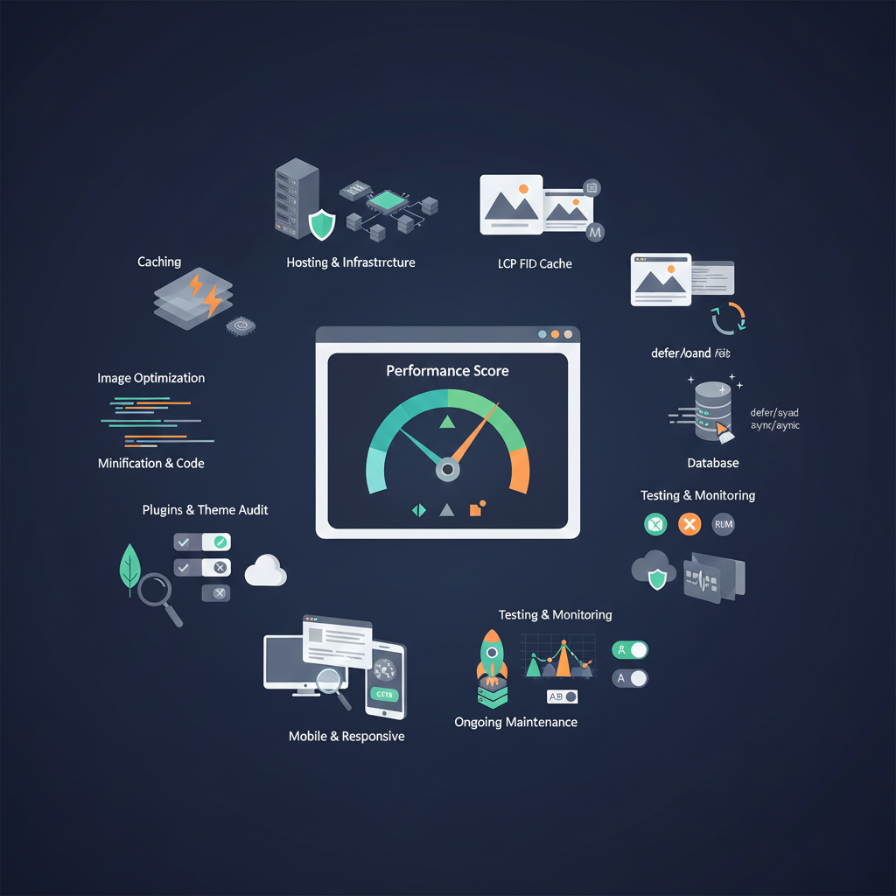
WordPress performance optimization requires systematic attention to multiple factors: images, caching, database, plugins, themes, hosting, and code efficiency. No single optimization fixes all performance issues, but comprehensive attention to all areas creates fast, efficient WordPress sites.
Start with high-impact optimizations: image compression, caching implementation, and plugin auditing. These fundamentals provide substantial improvements with reasonable effort.
Build on basics with database optimization, code minification, and hosting upgrades as needed. Each additional optimization compounds benefits, progressively improving performance.
Monitor performance regularly, maintaining speed as sites grow and content accumulates. Performance degrades over time without attention regular maintenance preserves optimization efforts.
Whether you optimize sites yourself or work with professional WordPress developers, WordPress performance dramatically affects user experience, search rankings, and conversion rates. The investment in optimization pays dividends through better results across every business metric affected by site speed.
Your WordPress site can be fast. The techniques and strategies in this guide provide roadmaps from slow, frustrating experiences to fast, efficient sites that users enjoy and search engines reward. Implementation requires effort and attention, but the results better rankings, higher conversion rates, and satisfied users justify the investment many times over.
Need help optimizing your WordPress site for better performance? Our team provides comprehensive WordPress performance optimization including audits, implementation, and ongoing monitoring. Contact us to discuss improving your site speed.
